Accédez à l'ensemble des versions officielles de notre lecteur premium pour votre abonnement IPTV France. Choisissez votre plateforme ci-dessous et suivez nos guides d'installation simples.
Select your device to see its guide:
Go to Settings → My Fire TV → Developer Options → Apps from Unknown Sources → Turn On.
Go to Settings → My Fire TV → Developer Options → Apps from Unknown Sources → Turn On.
Go to Settings → My Fire TV → Developer Options → Apps from Unknown Sources → Turn On.
Go to Settings → My Fire TV → Developer Options → Apps from Unknown Sources → Turn On.
Go to Settings → My Fire TV → Developer Options → Apps from Unknown Sources → Turn On.
6
Go to Settings → My Fire TV → Developer Options → Apps from Unknown Sources → Turn On.
Navigate to the Play Store from your Android TV or Android box home screen.
Search "TiviMate IPTV Player" and install it — the top-rated IPTV player for Android TV.
Launch TiviMate, tap "Add Playlist", then select "Xtream Codes" as the playlist type.
Input your server URL, username and password from your ApolloTV welcome email.
TiviMate loads your channels. Navigate with your TV remote — it is designed for lean-back use.
If you get stuck at any step, our support team will walk you through it on any device. Contact us over live chat or WhatsApp — we'll get you watching.
Press the Home button on your Samsung remote and open Smart Hub to reach the app store.
In the Samsung App Store, search "Smart IPTV" and install it.
Open Smart IPTV — a MAC address is shown on screen. Note it down.
On a PC or phone, visit siptv.eu/activation and enter your MAC address to register.
Enter your ApolloTV M3U URL (from your welcome email) in the siptv.eu portal and save.
Back on your Samsung TV, open Smart IPTV and press reload. Your channels appear.
If you get stuck at any step, our support team will walk you through it on any device. Contact us over live chat or WhatsApp — we'll get you watching.
Press Home on your LG Magic Remote and open the LG Content Store.
Search "SS IPTV" in the LG Content Store and install the app.
Launch SS IPTV from your LG home screen and choose to add a playlist.
Choose "Remote Playlist (URL)" as the source to enter your ApolloTV M3U link.
Paste your ApolloTV M3U URL from your welcome email into the URL field and confirm.
SS IPTV loads your channels automatically. Use the LG remote to navigate.
If you get stuck at any step, our support team will walk you through it on any device. Contact us over live chat or WhatsApp — we'll get you watching.
Open the App Store on your iPhone or iPad, search "GSE Smart IPTV" and install the free app.
Launch GSE Smart IPTV and tap the menu icon (three lines) in the top-left corner.
Select "Remote Playlists" from the side menu, then tap "+" to add a new playlist.
Name the playlist (e.g. "ApolloTV") and paste your M3U URL from your welcome email.
Tap your new playlist and browse channels by category. Tap any channel to stream.
If you get stuck at any step, our support team will walk you through it on any device. Contact us over live chat or WhatsApp — we'll get you watching.
Search "IPTV Smarters" in the Microsoft Store or download from the official website.
Install and launch IPTV Smarters. Click "Login with Xtream Codes API" on the welcome screen.
Enter your ApolloTV server URL, username and password exactly as provided in your welcome email.
Click "Add User" and your channels will load. The first load may take a moment.
Browse Live TV, Movies and Series from the dashboard, in windowed or fullscreen mode.
If you get stuck at any step, our support team will walk you through it on any device. Contact us over live chat or WhatsApp — we'll get you watching.
Open the Mac App Store, search "GSE Smart IPTV" and install the app.
Launch GSE Smart IPTV, click the menu and select "Remote Playlists".
Click "+", name your playlist and paste your M3U URL from your welcome email.
Select your playlist to see all channels by category. Click any channel to stream.
You can also open your M3U URL in VLC or IINA via File → Open Network Stream.
If you get stuck at any step, our support team will walk you through it on any device. Contact us over live chat or WhatsApp — we'll get you watching.
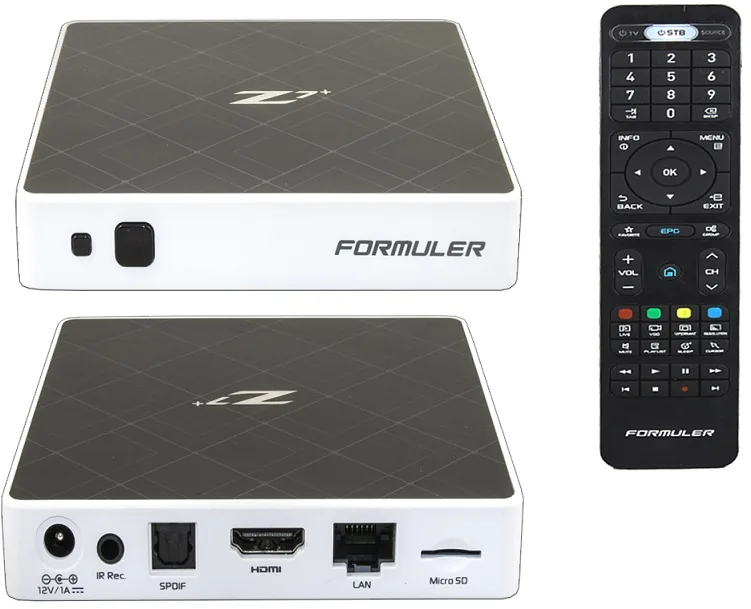
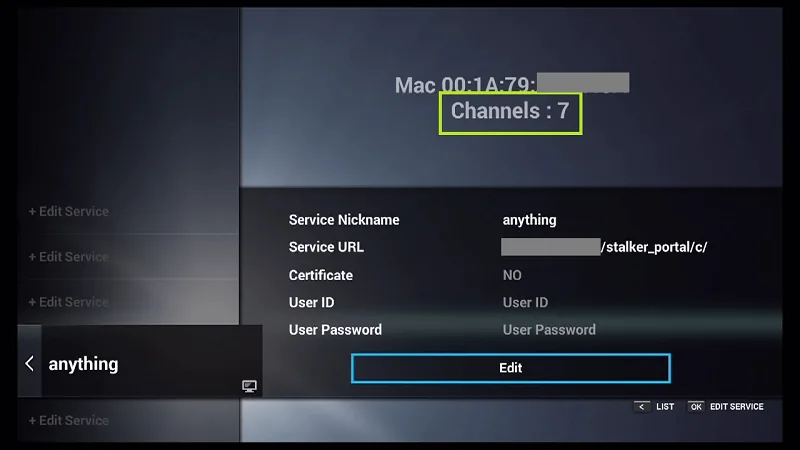
Formuler boxes have both a MAC and an ID. Find the MAC on the box or its catalogue (e.g. 00:1E:B8:XX:XX:XX). Convert it to an ID by replacing the first six digits with 00:1A:79 (e.g. 00:1A:79:XX:XX:XX), then send that ID to ApolloTV so we can activate your line. Works on all Formuler models (Z7+, Z8, ZX and newer).
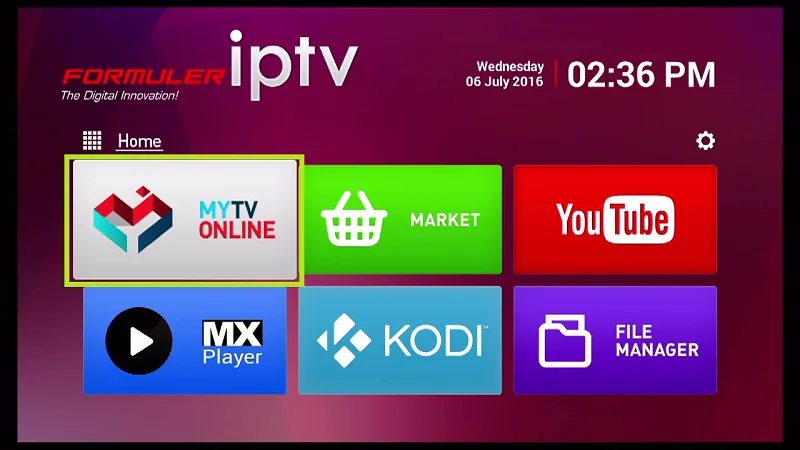
Download MYTV Online from the Google Play Store on your Formuler box, then open the app.
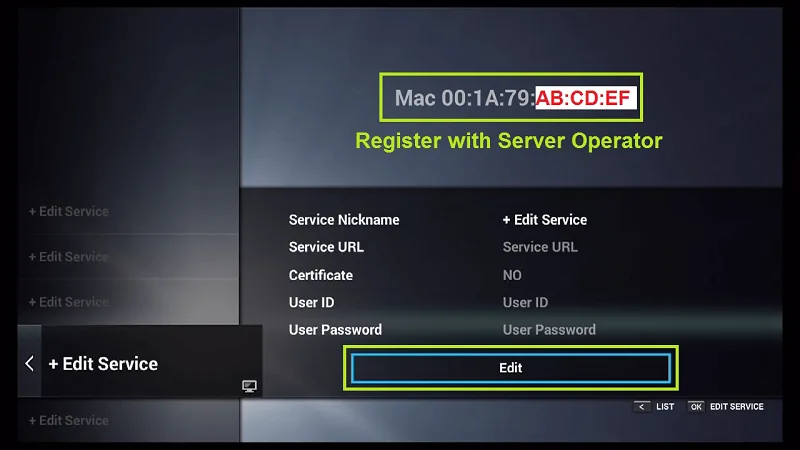
Click "Edit Service", then "Edit". Register with your ID address (not the MAC). Add the ID as MAG and use the MAG portal method.
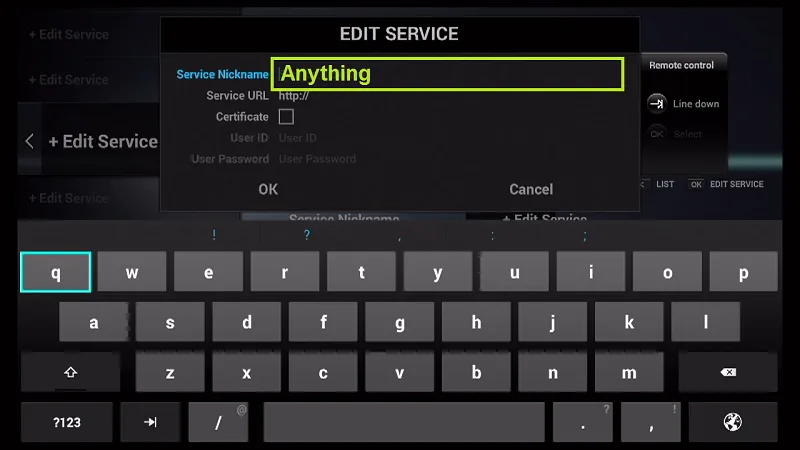
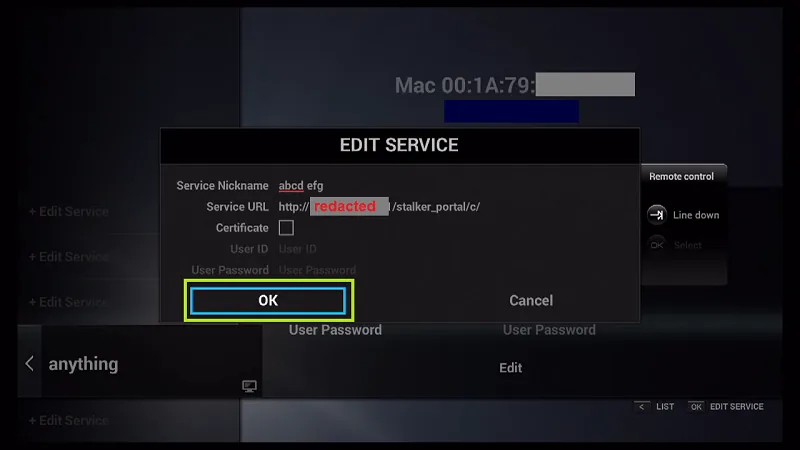
Enter a Service Nickname (for example "ApolloTV") and click OK.
Enter the IPTV Server URL (the STB MAG / Portal URL) from your ApolloTV welcome email, then click OK.
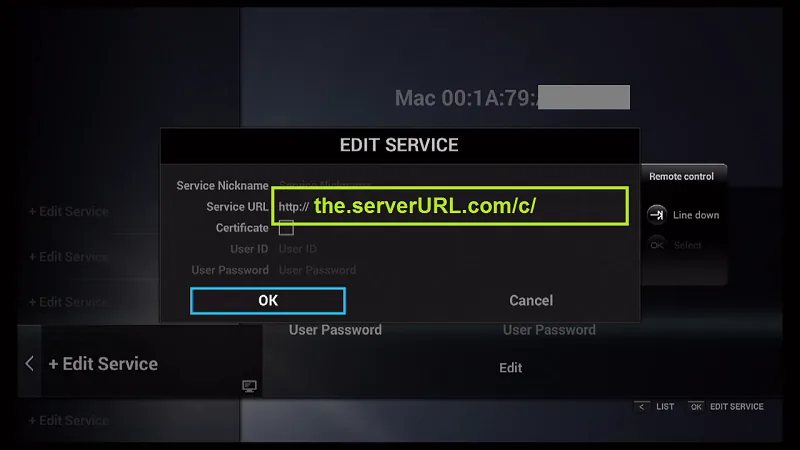
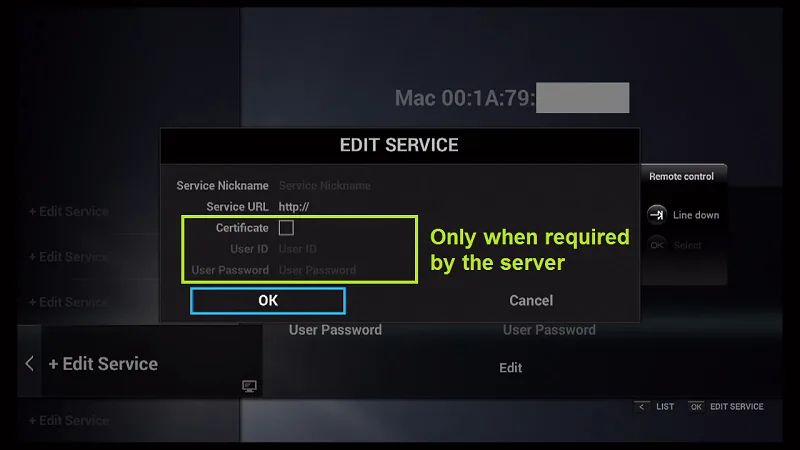
A username and password are not required for the portal method — leave them blank.
Click OK to proceed. This may take a short moment while the box saves your settings.
The box now connects to the ApolloTV server using your registered data.
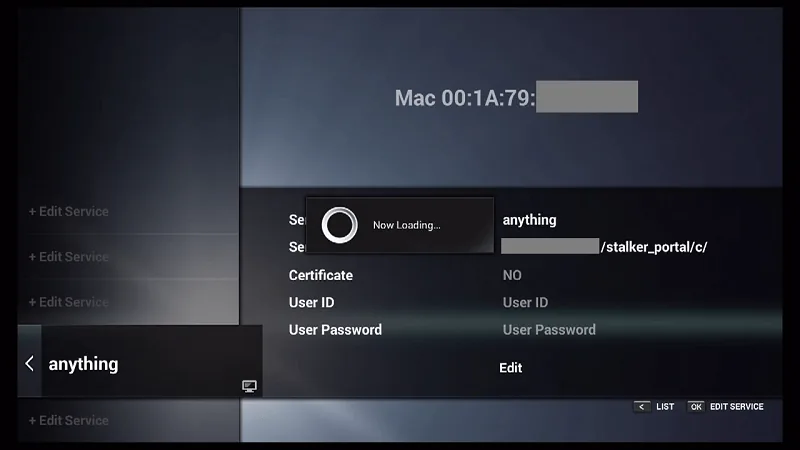
Connection successful — all the channels on your account load and you can start watching live TV.
If you get stuck at any step, our support team will walk you through it on any device. Contact us over live chat or WhatsApp — we'll get you watching.

MAG is a portal-based set-top box (MAG 254, 322, 324, 349, 424 and similar). Before you start, find the MAC address on the sticker underneath your box (it starts 00:1A:79:…) and send it to ApolloTV so we can activate your line.
Find the MAC on the sticker under your MAG box (starts 00:1A:79:…) and send it to ApolloTV. We activate your subscription against that MAC before the portal will load.
From the MAG main menu, open the Settings menu (the gear icon).
Navigate to System Settings → Servers → Portals to open the portal configuration screen.
In "Portal 1 name" enter ApolloTV, and in "Portal 1 URL" paste the portal URL from your welcome email. Save with the OK / menu button.
Go back and choose "Restart Portal" (or briefly unplug and replug the box) so it reloads with your new settings.
The ApolloTV portal loads and all your channels appear. Browse Live TV, Movies and Series from the menu.
If you get stuck at any step, our support team will walk you through it on any device. Contact us over live chat or WhatsApp — we'll get you watching.
Notre équipe francophone est disponible 24h/24 et 7j/7 pour vous répondre et vous aider à choisir le meilleur abonnement IPTV.
